

Azure AI Search
Azure AI Search serves as a self-hosted vector store data sink for a LlamaCloud Index, with API key or service principal authentication and filterable metadata fields.
Configure via UI
Section titled “Configure via UI”We can load data by using two different types of authentication methods:
1. API Key Authentication Mechanism
Section titled “1. API Key Authentication Mechanism”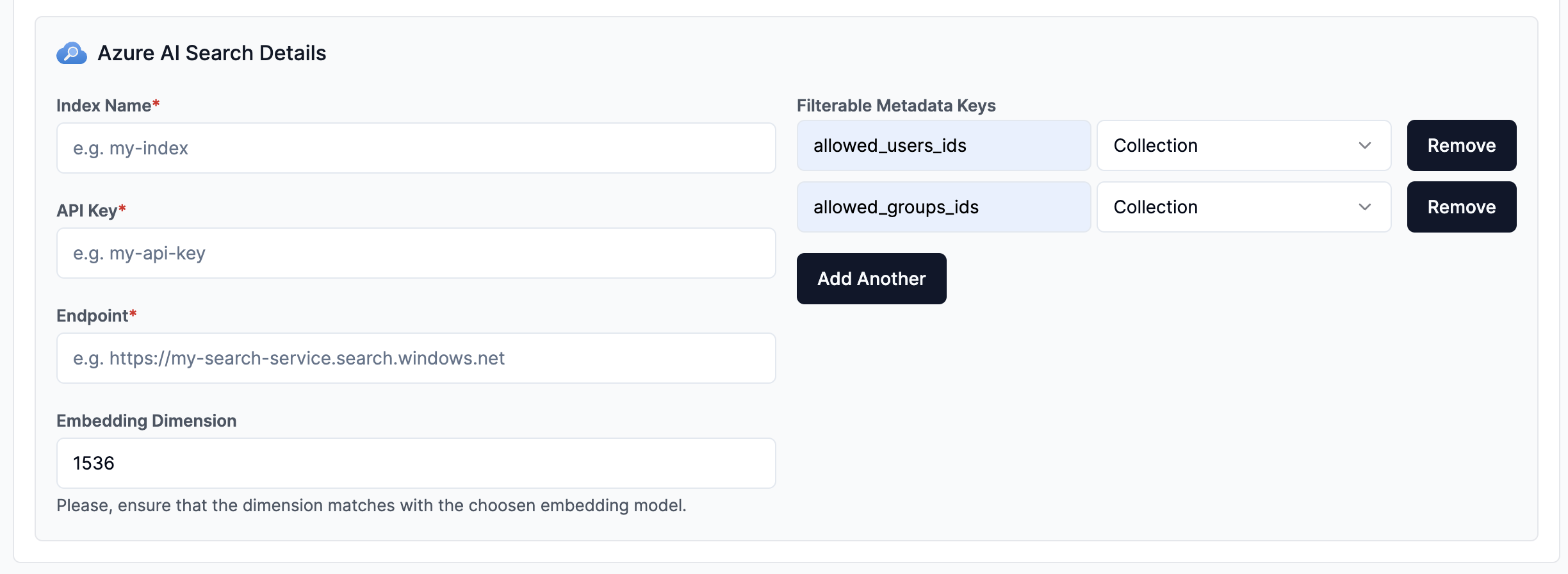
2. Service Principal Authentication Mechanism
Section titled “2. Service Principal Authentication Mechanism”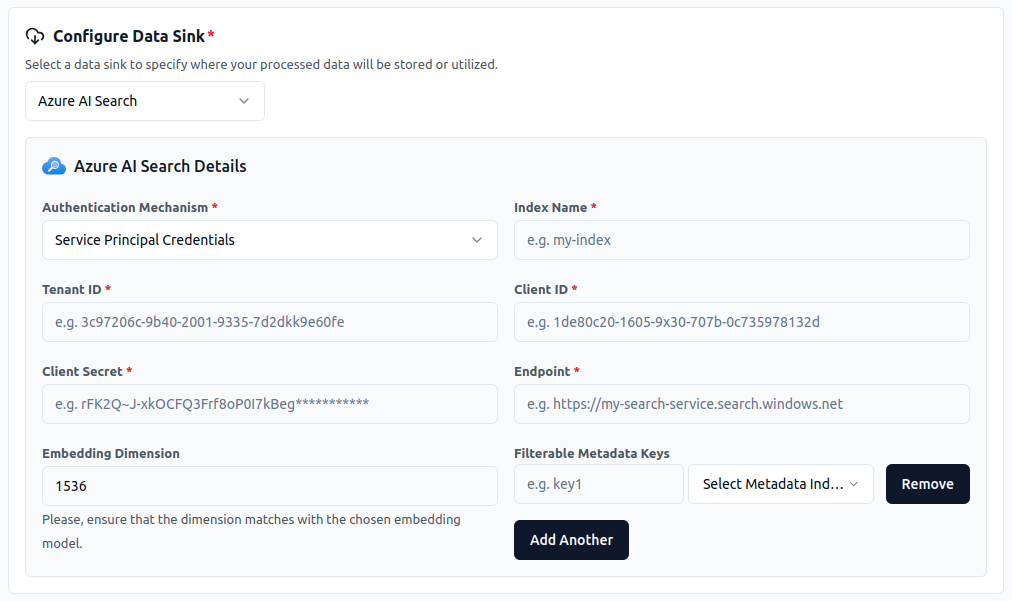
Configure via API / Client
Section titled “Configure via API / Client”from llama_cloud.types.data_sink_create_params import ( CloudAzureAiSearchVectorStore,)
data_sink = client.data_sinks.create( name="my-data-sink", component=CloudAzureAiSearchVectorStore( index_name='<index_name>', search_service_api_key='<api_key>', search_service_endpoint='<endpoint>', embedding_dimension='<embedding_dimension>', # optional (default: 1536) filterable_metadata_field_keys='<insert_filterable_metadata_field_keys>', # optional ), sink_type="AZUREAI_SEARCH",)const ds = { 'name': 'azureaisearch', 'sinkType': 'AZUREAI_SEARCH', 'component': { 'index_name': '<index_name>', 'search_service_api_key': '<api_key>', 'search_service_endpoint': '<endpoint>', 'embedding_dimension': '<embedding_dimension>', // optional (default: 1536) 'filterable_metadata_field_keys': '<insert_filterable_metadata_field_keys>', // optional }}
const dataSink = await client.dataSinks.create({ name: 'my-data-sink', component: { index_name: '<index_name>', search_service_api_key: '<api_key>', search_service_endpoint: '<endpoint>', embedding_dimension: '<embedding_dimension>', // optional (default: 1536) filterable_metadata_field_keys: '<insert_filterable_metadata_field_keys>', // optional }, sink_type: 'AZUREAI_SEARCH',});2. Service Principal Authentication Mechanism
Section titled “2. Service Principal Authentication Mechanism”from llama_cloud.types.data_sink_create_params import ( CloudAzureAiSearchVectorStore,)
data_sink = client.data_sinks.create( name="my-data-sink", component=CloudAzureAiSearchVectorStore( index_name='<index_name>', client_id='<client_id>', tenant_id='<tenant_id>', client_secret='<client_secret>', endpoint='<endpoint>', embedding_dimensionality='<embedding_dimensionality>', # optional filterable_metadata_field_keys='<filterable_metadata_field_keys>' # optional ), sink_type="AZUREAI_SEARCH",)const dataSink = await client.dataSinks.create({ name: 'my-data-sink', component: { index_name: '<index_name>', client_id: '<client_id>', tenant_id: '<tenant_id>', client_secret: '<client_secret>', endpoint: '<endpoint>', embedding_dimensionality: '<embedding_dimensionality>', // optional filterable_metadata_field_keys: '<filterable_metadata_field_keys>' // optional }, sink_type: 'AZUREAI_SEARCH',});Filterable Metadata Field Keys
Section titled “Filterable Metadata Field Keys”The filterable_metadata_field_keys parameter specifies the fields that are used for filtering in the search service.
The type of the field specifices whether the field is a string or a number. The format is as follows:
The value being passed is just for identification purposes. The actual values of the fields will be passed during the insert operation or retrieval.
{ "field1": "string", "field2": 0 "field3": false "field4": []}So for example, if you have a field called age that is a number, you would specify it as follows:
{ "age": 0}If you have a field called name that is a string, you would specify it as follows:
{ "name": "string"}If you have a field called is_active that is a boolean, you would specify it as follows:
{ "is_active": false}If you have a field called tags that is a list, you would specify it as follows:
{ "tags": []}Enabling Role-Based Access Control (RBAC) for Azure AI Search
Section titled “Enabling Role-Based Access Control (RBAC) for Azure AI Search”This guide will walk you through the necessary steps to enable Role-Based Access Control (RBAC) for your Azure AI Search service. This involves configuring your Azure resources and assigning the appropriate roles.
Prerequisites:
Section titled “Prerequisites:”Azure Subscription:Ensure you have an active Azure subscription.Azure AI Search Service:An existing Azure Cognitive Search service instance.Azure Portal Access:You need sufficient permissions to configure RBAC settings in the Azure Portal.
Step-by-Step Guide:
Section titled “Step-by-Step Guide:”Step 1: Sign in to Azure Portal
Section titled “Step 1: Sign in to Azure Portal”Step 2: Navigate to Your Azure AI Search Service
Section titled “Step 2: Navigate to Your Azure AI Search Service”- In the Azure Portal, use the search bar to find and select “Azure AI Search”.
- Select your search service from the list.
Step 3: Access the Access Control (IAM) Settings
Section titled “Step 3: Access the Access Control (IAM) Settings”- In your search service’s navigation menu, select Access control (IAM).
- You will see a list of roles assigned to the service.
Step 4: Assign Roles to Users or Applications
Section titled “Step 4: Assign Roles to Users or Applications”- Click on + Add and select Add role assignment.
- In the Role dropdown, select a suitable role. For example:
Search Service Contributor:Can manage the search service but not access its content.Search Service Data Contributor:Can manage the search service and access its content.Search Service Data Reader:Can access the content of the search service but cannot manage it.
- In the Assign access to dropdown, choose whether you are assigning the role to a user, group, or service principal.
- In the Select field, find and select the user, group, or service principal you want to assign the role to.
- Click Save to apply the role assignment.
Step 5: Enable Role Based Access Control
Section titled “Step 5: Enable Role Based Access Control”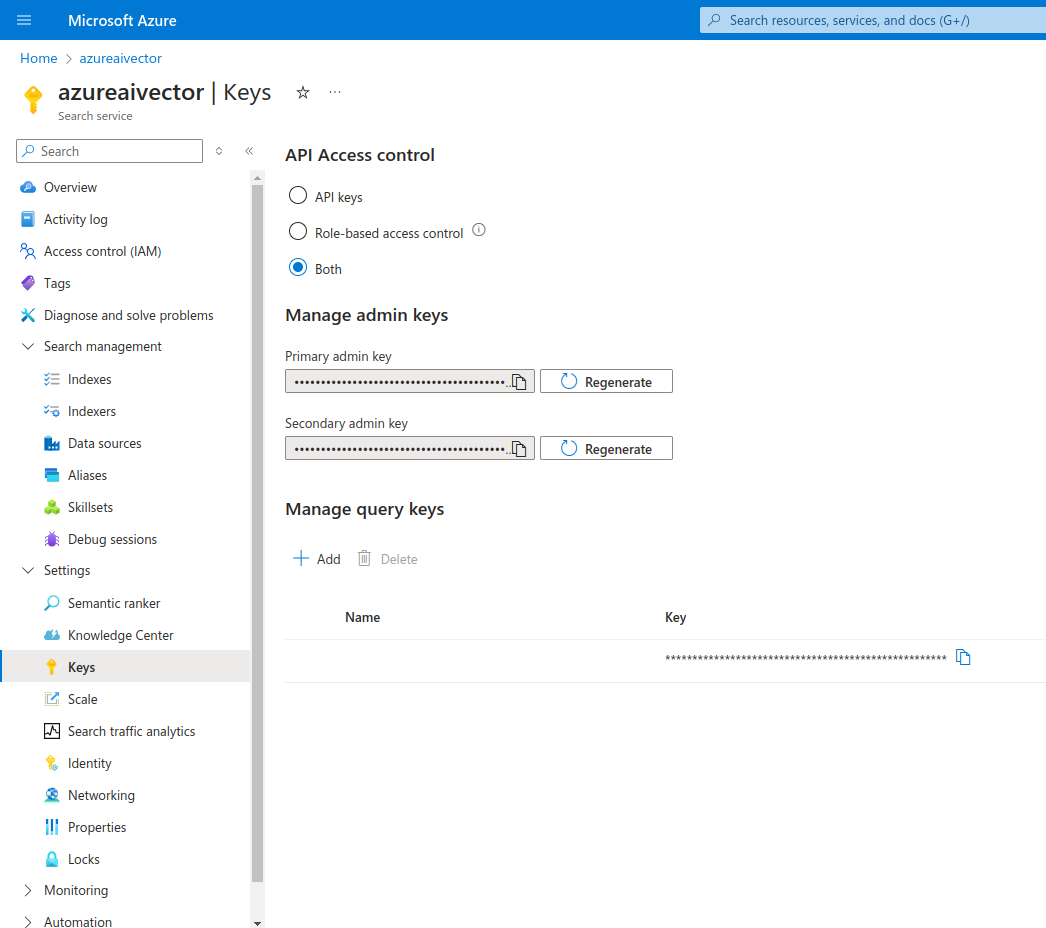
- Select Settings and then select Keys in the left navigation pane.
- Choose Role-based control or Both if you’re currently using keys and need time to transition clients to role-based access control.